
In the realm of modern surveillance, Dahua NVR stand as paragons of innovation and efficiency. However, there are occasions when resetting camera settings becomes a necessity – be it for troubleshooting or restoration your system. This guide delves into the intricate process of reverting your Dahua IP camera settings to their factory defaults.
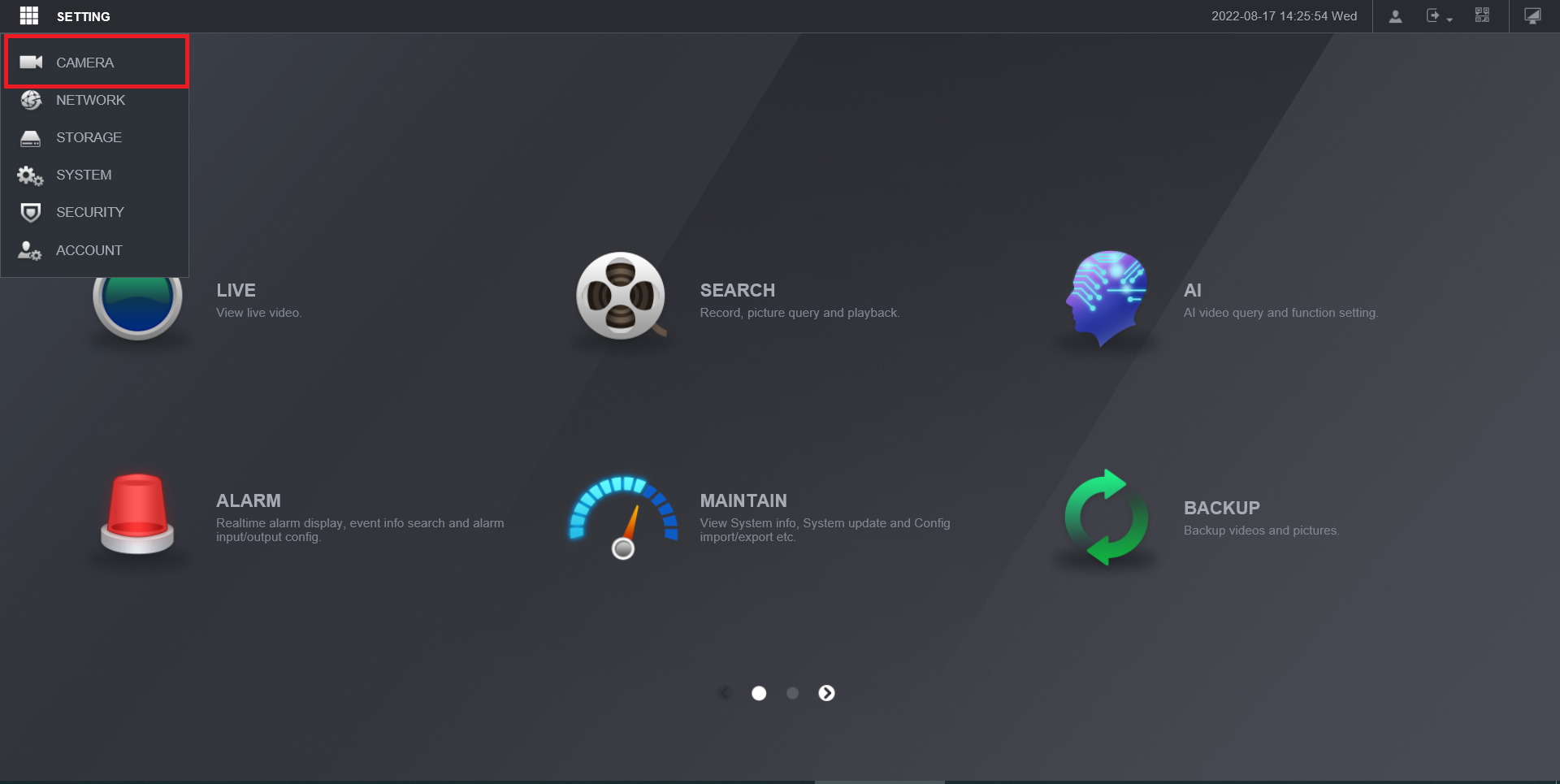
To initiate the camera reset process, start by accessing your Dahua NVR interface. After logging in, locate and click on the “Camera” option. This will lead you to the camera configuration panel.
Within the camera configuration panel, locate the specific camera whose settings you wish to reset. Pay careful attention to the port name associated with the camera, especially if you have multiple cameras connected to the NVR. Once you’ve identified the camera, proceed by clicking on the “Webpage” option.
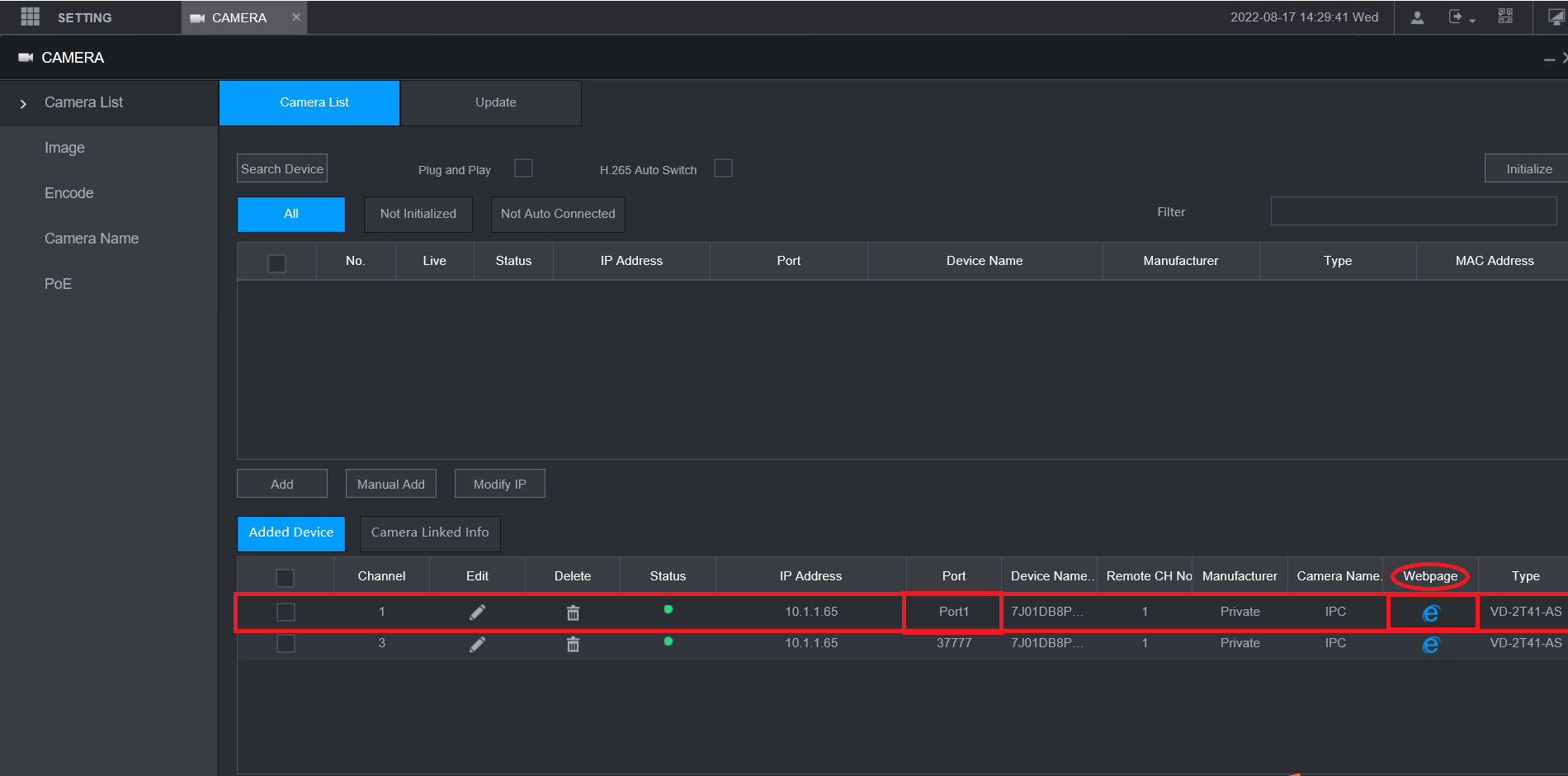
Upon clicking “Webpage,” a new browser window will open, allowing you to access the camera’s settings directly. Log in to the camera using the appropriate credentials. Once logged in, navigate to the “Setting” menu. From there, follow this path: “System” > “Default” > “Factory Default.”
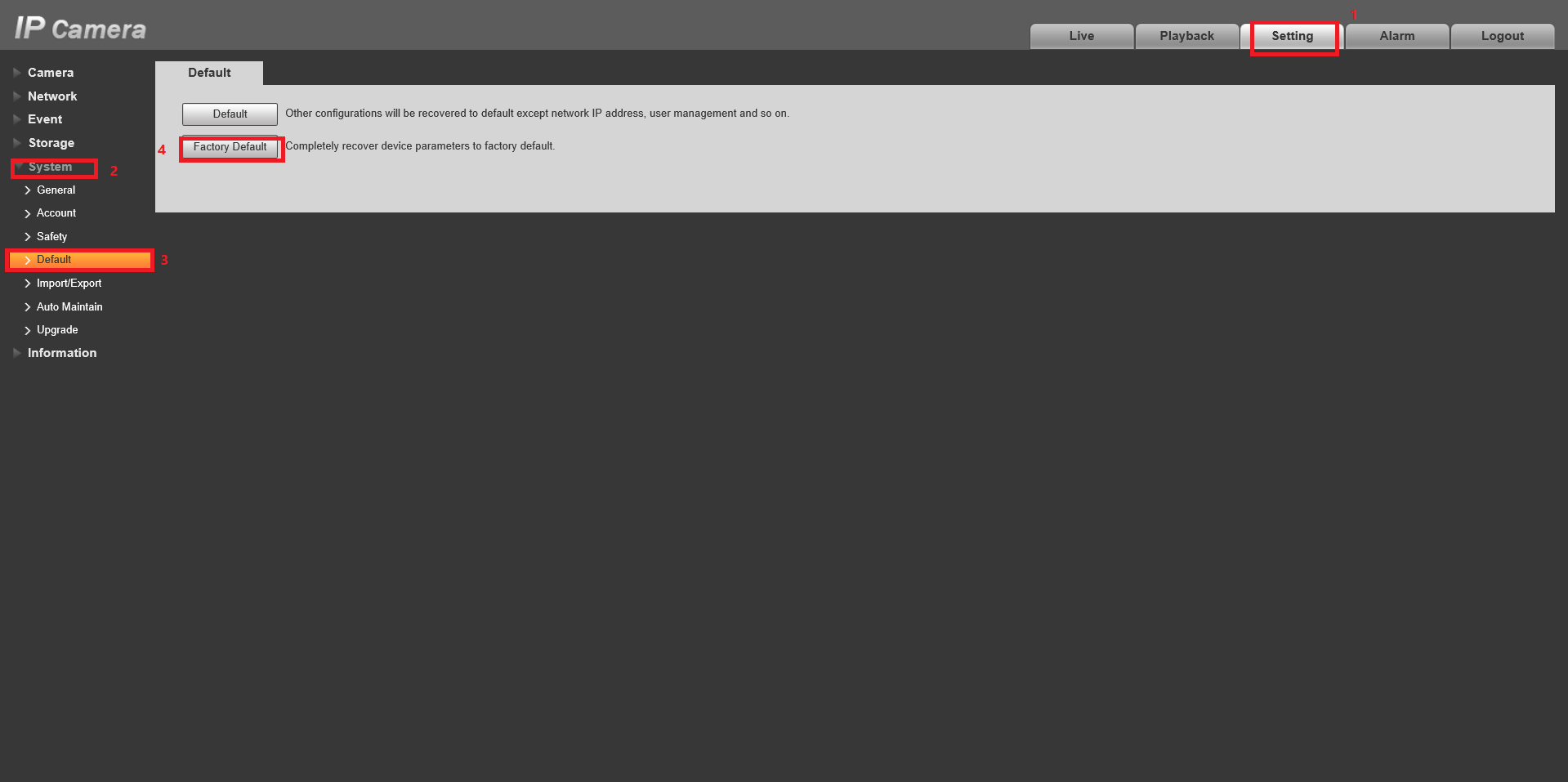
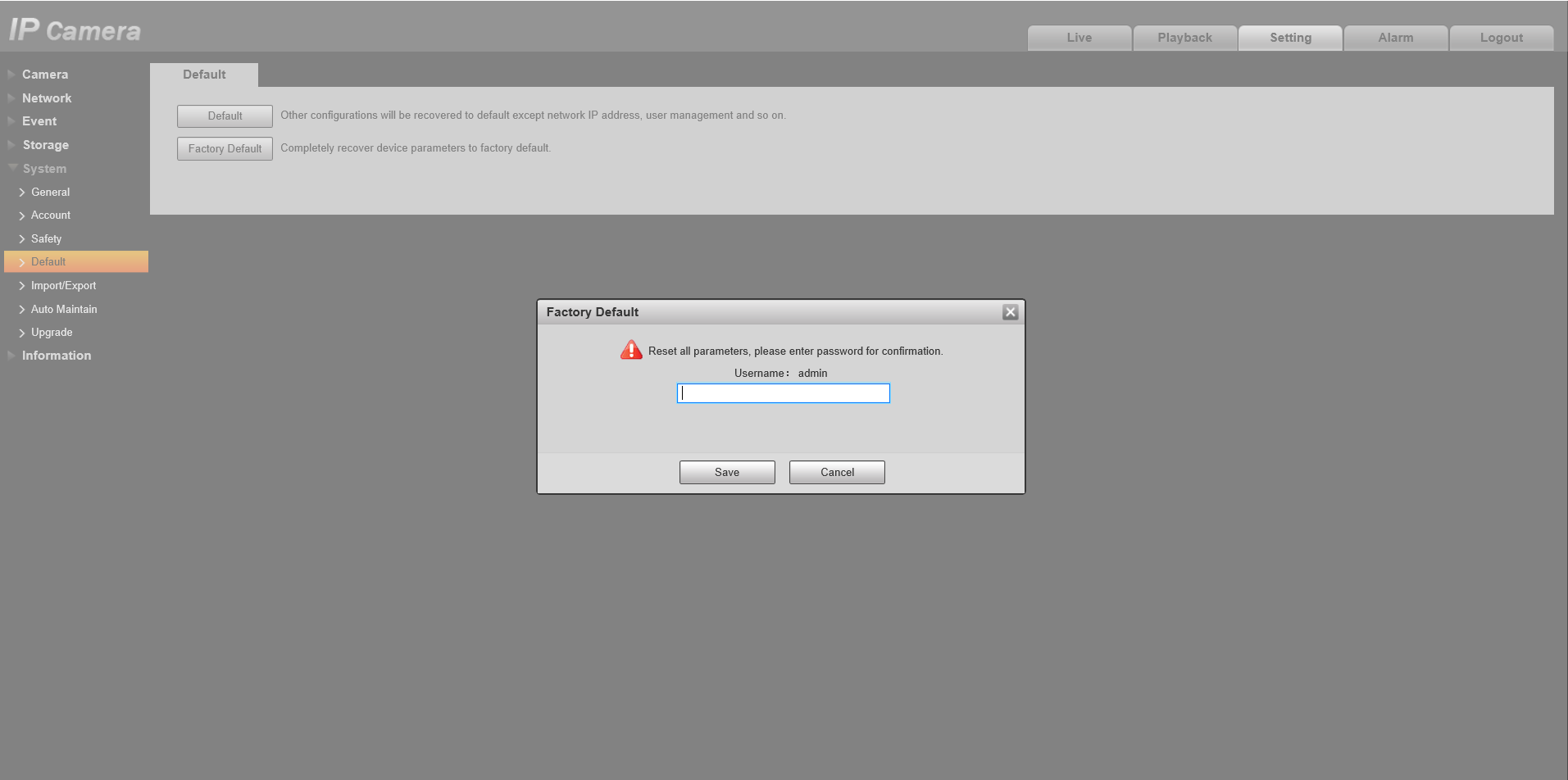
Within the “Factory Default” menu, you will be prompted to enter a password to confirm the restoration of the camera’s factory settings. This password acts as a safeguard to prevent accidental or unauthorized changes. Enter the password as required to proceed with the factory reset. Once confirmed, the camera’s settings will be reverted to their original factory state.
Factory reset your Dahua camera to factory defaults can prove to be a valuable troubleshooting tool or a way to start with a clean slate. By following the steps outlined in this guide, you can easily navigate the interface, identify the correct camera, and initiate the reset process. Remember to use caution and ensure you have the necessary credentials to access the camera settings.