
Accessing the Camera Web Through NVR

Step One

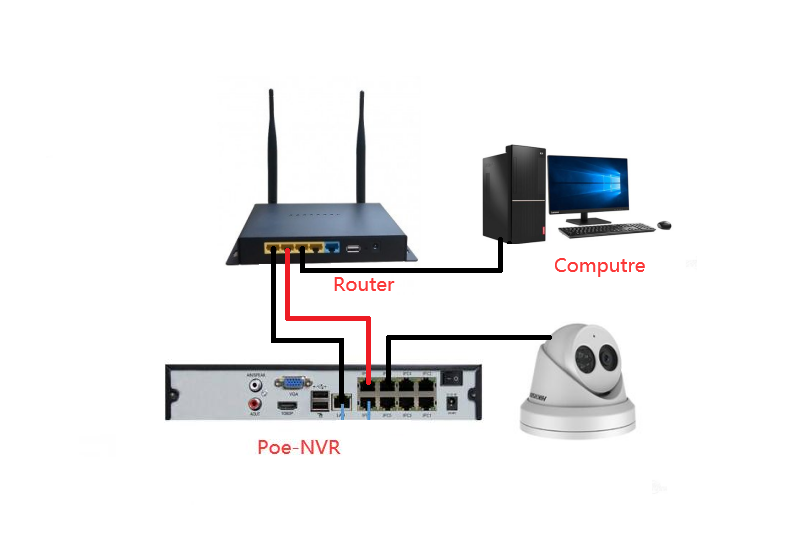
Connect the Device

Connect the NVR’s POE port with the router’s LAN port with a network cable, so that the computer can directly access the camera’s web page
92bd6911a06d88afaa0999c78bff68cd

Step Two

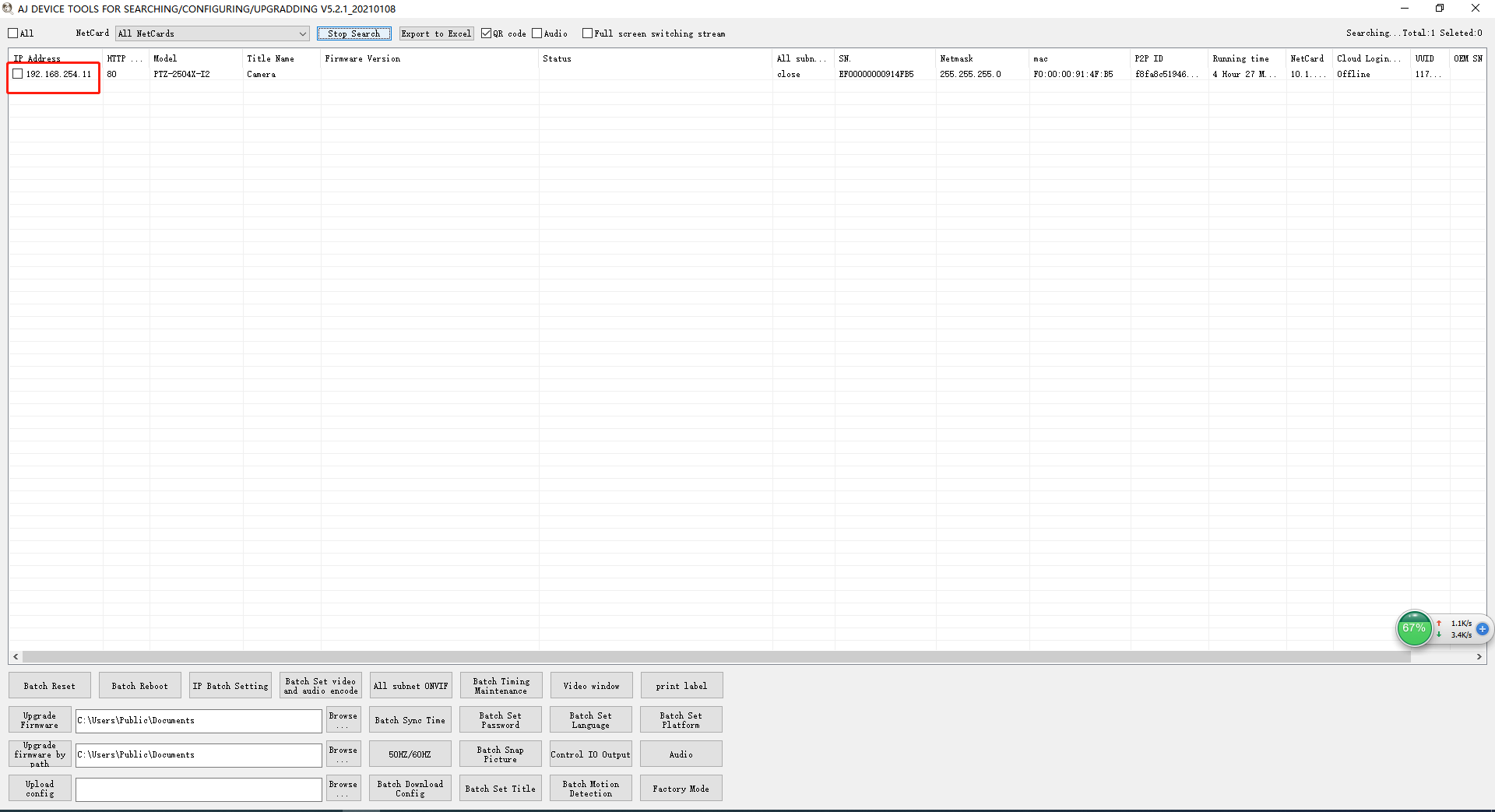
Download and open the search tool “AjDev Tools” to check the IP address of the camera

Download link: http://ourdownload.tech/
d86bd52b9e3fe7a241c89e0286756887

Step Three

Add an IP address on the same network segment as the camera for the computer

(the first  three digits of the IP address are the same, and the last digit is different)
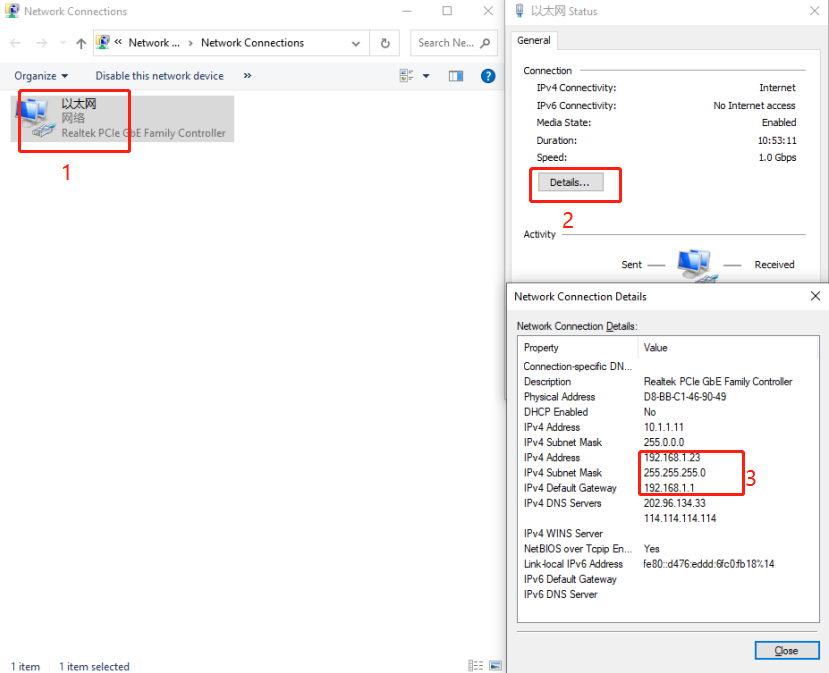
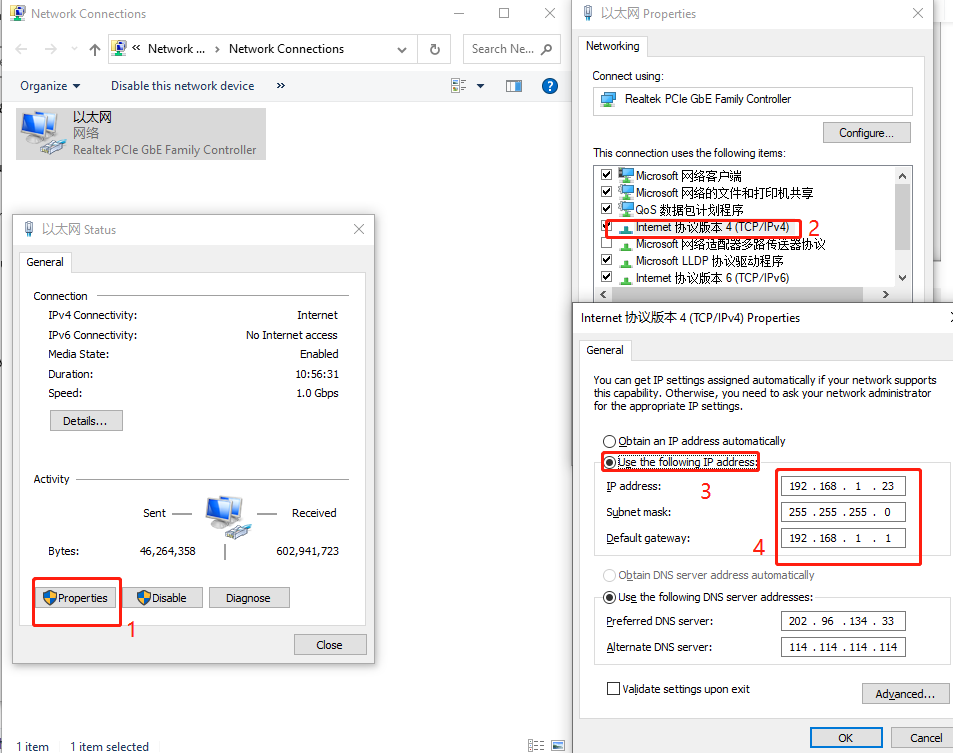
  • Change computer IP address to static IP Turn on the network adapter to check the computer’s IP address, change the camera’s IP address to a static IP, and fill in the computer’s IP address in the box below.
07961ce17d4ecb46cf7dcd4d6984b925
fdf35afb4c39efa49bb9ec154b87c6b9
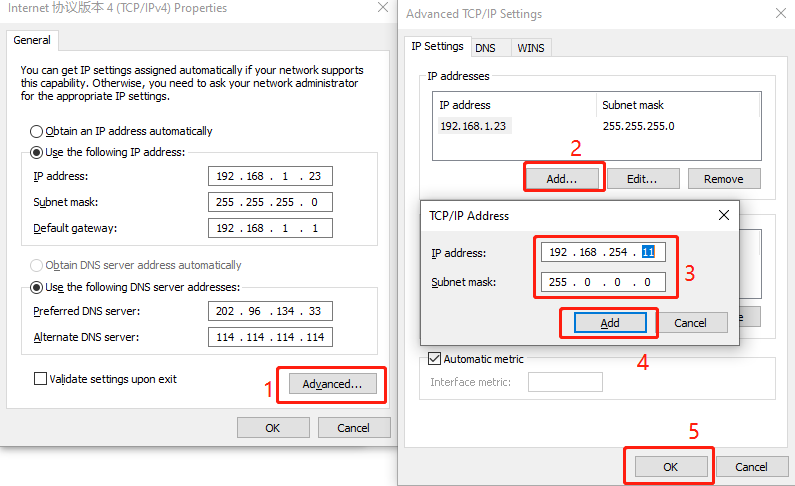
  • Add an IP address on the same network segment as the camera IP for the computer.       (The first three digits are the same as the camera, the last digit is different)
e0712a3d33b7b92034d10c51c331b362

Step Four

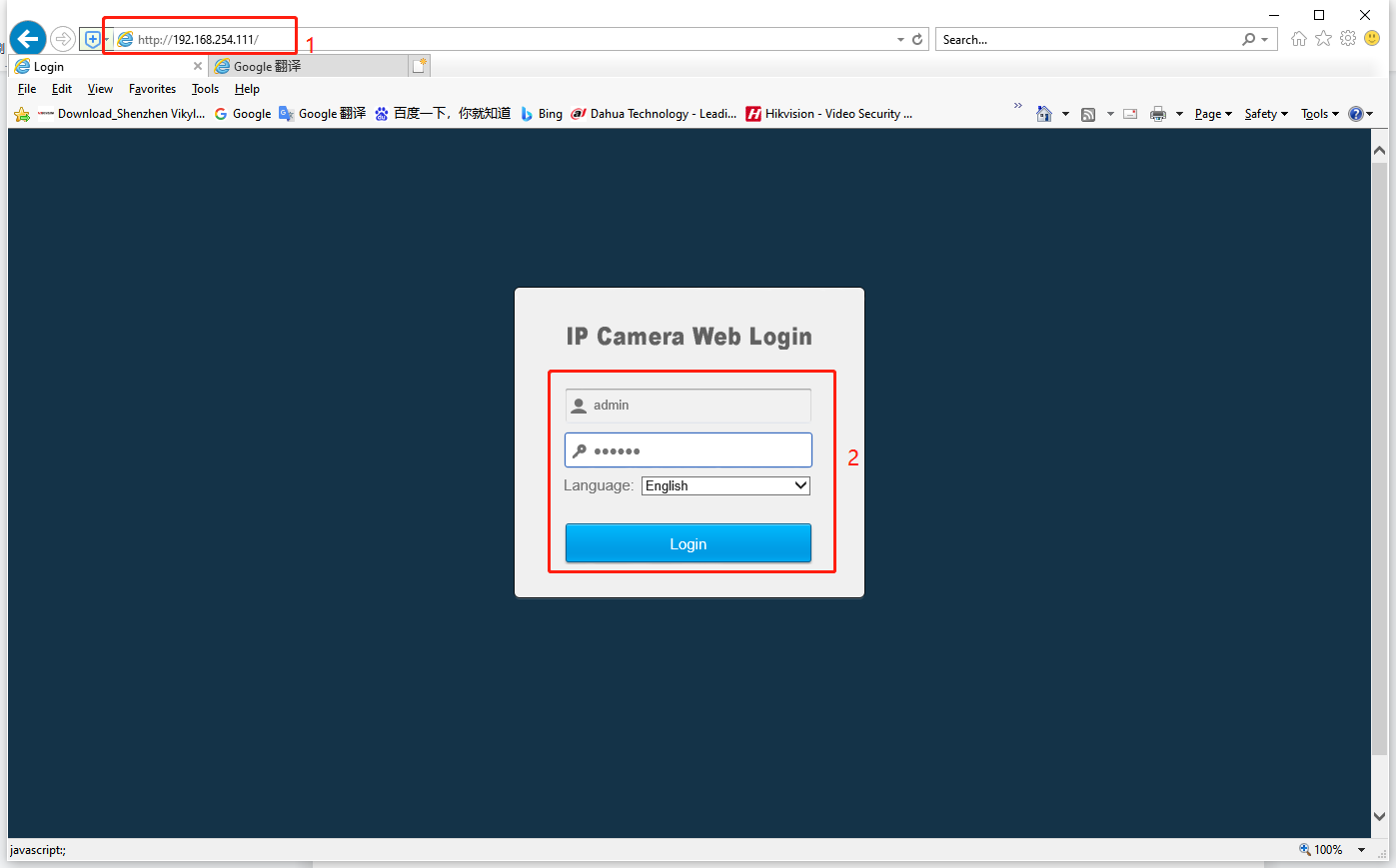
Open the IE browser, enter the camera IP address, and fill in the camera account password

(the default account is admin, and the default password is 123456)
423584fcecc253345f4a0f216e469a32

Share this post

Related Post

You May Like

Dive into our handpicked articles below, curated to align with your interest in reliable security technology, featuring expert tips, product deep dives, and scenario-based guides.