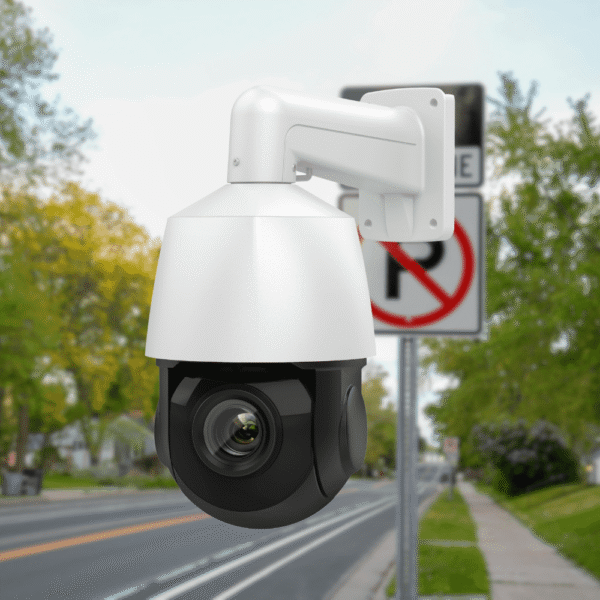

Users searching for methods to activate the audio and smart light features on analog surveillance systems frequently encounter setup failures. Integrating the Hikvision 2-way audio Hybrid colorVu camera requires specific menu adjustments on both the recording unit and the camera’s internal display.
Connect the camera to a compatible XT series DVR, change the channel stream type to Video & Audio, and access the PTZ control menu to turn on the microphone, speaker, and white light settings.
Connect the Hikvision DS-2CE72DF3T-LXTS to the DVR using a coaxial cable and provide a standard 12V DC power supply. Verify the recording unit is a Hikvision XT series DVR (such as the IDS-7232HQHI-M2/XT). Standard DVR models will display the video feed but cannot process the two-way audio signal.
Open the DVR Configuration menu. Navigate to Record, select Parameters. Choose the specific camera channel. Change the Stream Type for both the Main Stream and Sub-stream from Video to Video & Audio. Click Apply.
Navigate to Event, select Normal Event. Draw the motion detection area on the video feed. Under Linkage Action, check Notify Surveillance Center, Buzzer Alarm, and Alarm Pop-up Window. Enable the Sound and Light trigger boxes. Click Apply.
Open the live camera feed on the DVR. Click the PTZ Control icon on the bottom toolbar. Click the Iris+ button to display the internal camera OSD menu directly on the screen.
Use the directional arrows to navigate to Light Setting and select Smart Light or White Light. Navigate to Audio Setting. Switch Mic and Speaker to On. Adjust Mic Volume and Speaker Volume (scale 1-9). Keep Noise Deduction On. Navigate to Alarm Setting to choose the Alarm Source (Siren, Attention, Warning, Welcome, Danger) and set Alarm Times. Press Iris+ to Save and Exit.
Open the DVR Network settings, select Platform Access. Disable the smartphone Wi-Fi temporarily. Scan the QR code with the Hik-Connect mobile application to bind the device. Open the live view and tap the microphone icon to initiate two-way communication.
VisionIPC serves as a direct Hikvision cameras and Dahua CCTV distributor. Security integrators can procure the exact XT-series recording units and camera hardware required for this specific coaxial deployment.
Upgrading an existing coaxial network with the Hikvision 2-way audio Hybrid colorVu camera adds active deterrence capabilities without rewiring the site. Contact VisionIPC to request project pricing on compatible XT DVRs and complete surveillance packages.
Dive into our handpicked articles below, curated to align with your interest in reliable security technology, featuring expert tips, product deep dives, and scenario-based guides.